Using the RWX CLI and skill in Claude Code
Use Claude Code to create, run, and debug RWX tasks from the web, desktop, or your phone. This guide walks through setting up a Claude Code environment with the RWX CLI and Agent Skill.
Environment setup
You'll want to set up a Claude Code environment via their web interface or desktop app. While it's possible to set up basic code environments in the mobile app, only the web/desktop UIs currently support custom setup scripts.
You can either edit an existing environment or create a new one, but remember to use this environment when you want to do a Claude Code task involving RWX.
Network access
Choose Full or Custom internet access. With Custom, add *.rwx.com to Allowed domains for API calls, documentation, and log downloads.
Keep Also include default list of common package managers checked to allow CLI installation and artifact downloads.
Authentication
Choose one of the following options. Both use an RWX access token. Create a personal access token and select only the permissions Claude needs. For a shared environment, use a service account token instead.
API credentials
Claude's API credentials are available with Pro and Max subscriptions. This option requires RWX CLI v3.28.0 or later. The setup script below installs the latest version.
Claude's proxy adds your token to requests to RWX. The token isn't exposed to the session as an environment variable or file, and you don't need to run rwx login or set RWX_ACCESS_TOKEN.
Create and save the cloud environment first, then open it for editing. In your Claude Code environment settings:
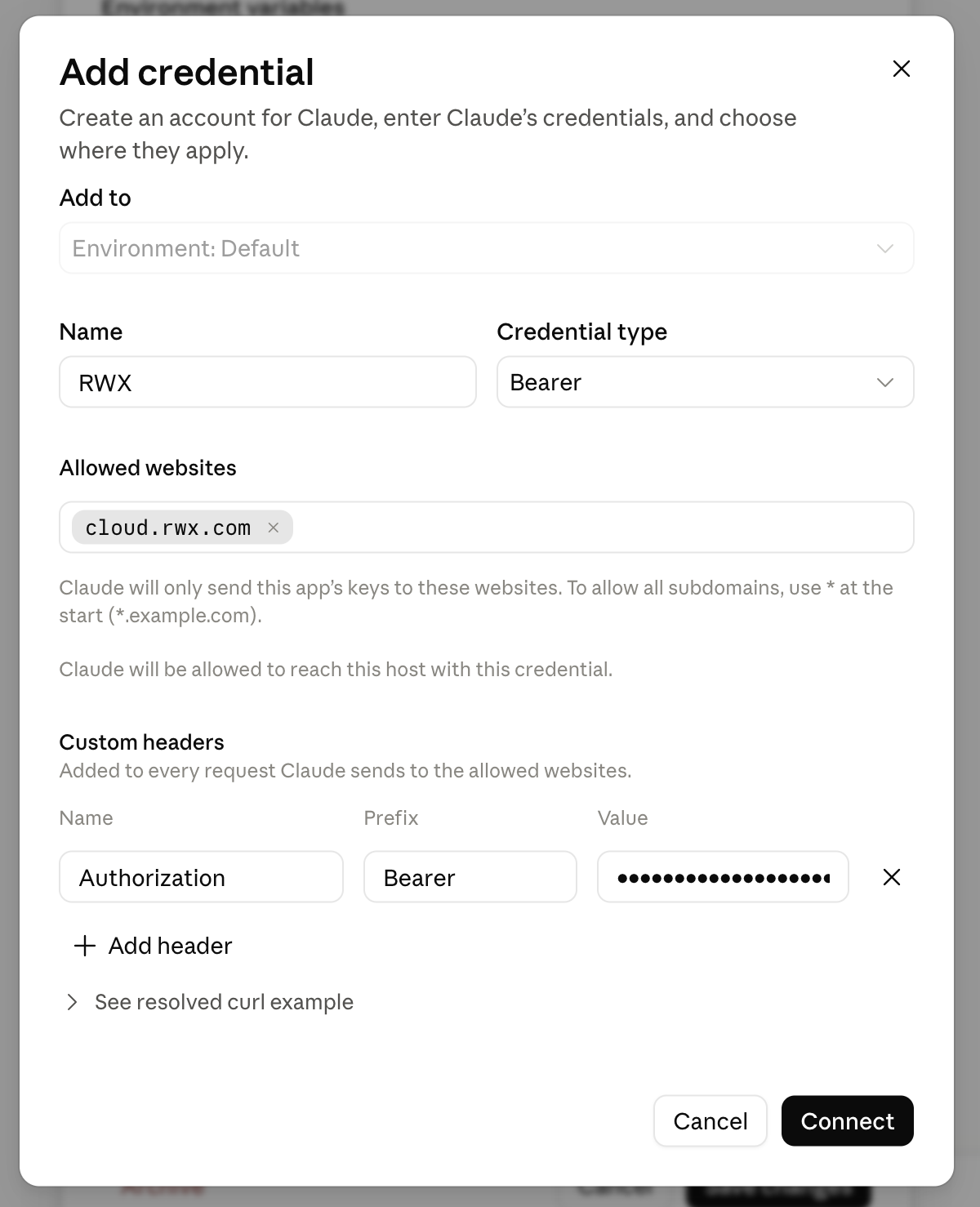
- Under API credentials, click Add credential.
- Enter RWX as the name and choose Bearer as the credential type.
- Add
cloud.rwx.comunder Allowed websites. - Under Custom headers, use
Authorizationas the name,Beareras the prefix, and your RWX access token as the value. - Click Connect.
The proxy keeps the token out of the session, but Claude can still use its permissions to act in RWX. Limit those permissions just as you would for a token stored in an environment variable.
Environment variable
If API credentials aren't available on your Claude subscription, add RWX_ACCESS_TOKEN to your environment variables and set its value to your RWX access token. You don't need to run rwx login.
Unlike API credentials, this makes the token available to commands running in the session. Don't put it in your setup script or commit it to your repository.
Setup script
Add the following setup script (or append to one you already have):
#!/bin/bash

# Install the RWX CLI
tmp="$(mktemp -d)"
curl -o "$tmp/rwx" -fsSL "https://github.com/rwx-cloud/rwx/releases/download/latest/rwx-linux-$(uname -p)"
sudo install "$tmp/rwx" /usr/local/bin
rm -rf "$tmp"

# Install the RWX Agent Skill
rwx skill install
Save your environment changes. Start a new Claude Code session with this environment and ask Claude to run:
rwx whoami
Check that it reports the expected RWX identity and organization. You can then ask Claude to create a task, run it with rwx run, and inspect the results.
For more information on configuring environments in Claude Code, see the Claude Code documentation.