Using the RWX CLI and skill in Claude Code Mobile
Claude's mobile app can be used to iterate and debug runs on the go. Below is a guide to setting up your mobile environment to leverage the RWX CLI and Agent Skill.
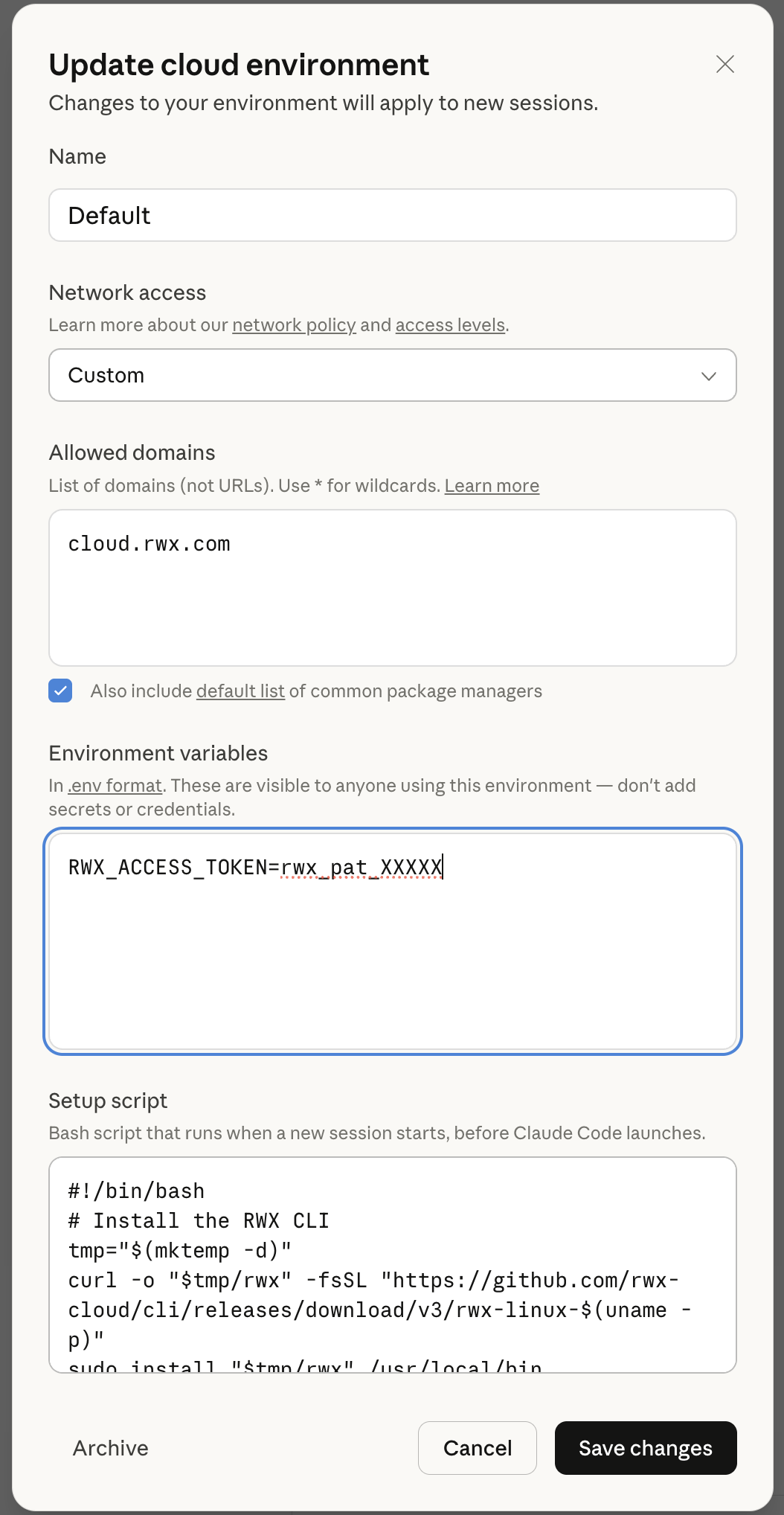
Environment setup
You'll want to set up a Claude Code environment via their web interface or desktop app. While it's possible to set up basic code environments in the mobile app, only the web/desktop UIs currently support custom setup scripts.
You can either edit an existing environment or create a new one, but remember to use this environment when you want to do a Claude Code task involving RWX.
Network access
You can either choose "full" or "custom" access to the internet. If you choose to use "custom" access, ensure cloud.rwx.com is one of your allowed domain.
If you are moving from "trusted" to "custom" access, be sure to leave the checkbox checked for "Also include default list of common package managers" so that the custom domains are additive.
Environment variables
Set a RWX_ACCESS_TOKEN value in your environment. You can create one here.
This access token allows Claude Code to interact with the RWX CLI as if it were you. Fine-grained access tokens for coding agents are on our roadmap but not yet available for this use case.
Setup script
Add the following setup script (or append to one you already have):
#!/bin/bash

# Install the RWX CLI
tmp="$(mktemp -d)"
curl -o "$tmp/rwx" -fsSL "https://github.com/rwx-cloud/rwx/releases/download/latest/rwx-linux-$(uname -p)"
sudo install "$tmp/rwx" /usr/local/bin
rm -rf "$tmp"

# Install the RWX Agent Skill
rwx skill install
Now you're ready to use that environment on desktop, web, or mobile to leverage RWX.
For more information on configuring environments in Claude Code, see the Claude Code documentation.
Below is an example configuration: